
Orbi RBK50 SetupComplete Step-by-Step Installation Guide
Quick Overview:
The Orbi RBK50 setup usually takes 15–20 minutes and includes eight simple steps: connecting the router to your modem, installing the Orbi app, configuring your WiFi settings, syncing the satellite, updating the firmware and testing your internet connection. The Orbi app guides you through most of the setup process automatically, making installation quick and straightforward. This makes the Netgear Orbi RBK50 easy to set up even for beginners.
Installing a mesh WiFi network is simple and the Orbi RBK50 setup is one of the easiest installation processes among mesh WiFi systems. Whether you’re replacing an older router or extending WiFi coverage throughout your home, the Netgear Orbi RBK50 lets you set up a reliable mesh network in less than 20 minutes. Below is a step-by-step guide to the Netgear Orbi RBK50 installation process.
What is the Orbi RBK50?
The Netgear Orbi RBK50 is a tri-band mesh WiFi system that includes one router and one satellite to deliver fast and reliable wireless coverage throughout your home. They work together to provide a powerful WiFi coverage without dead spots for houses with up to 5,000 square feet in size. Understanding that the RBK50 includes both a router and a satellite will help make the installation process easier.
What You Need Before Starting Netgear Orbi RBK50 Setup
Before starting the Netgear Orbi RBK50 setup, make sure you have the following items:
- Orbi router and satellite
- Power cords for the two devices
- Ethernet cable (supplied in the package)
- Working modem
- A smartphone or tablet with the Orbi app installed, or a computer with internet access
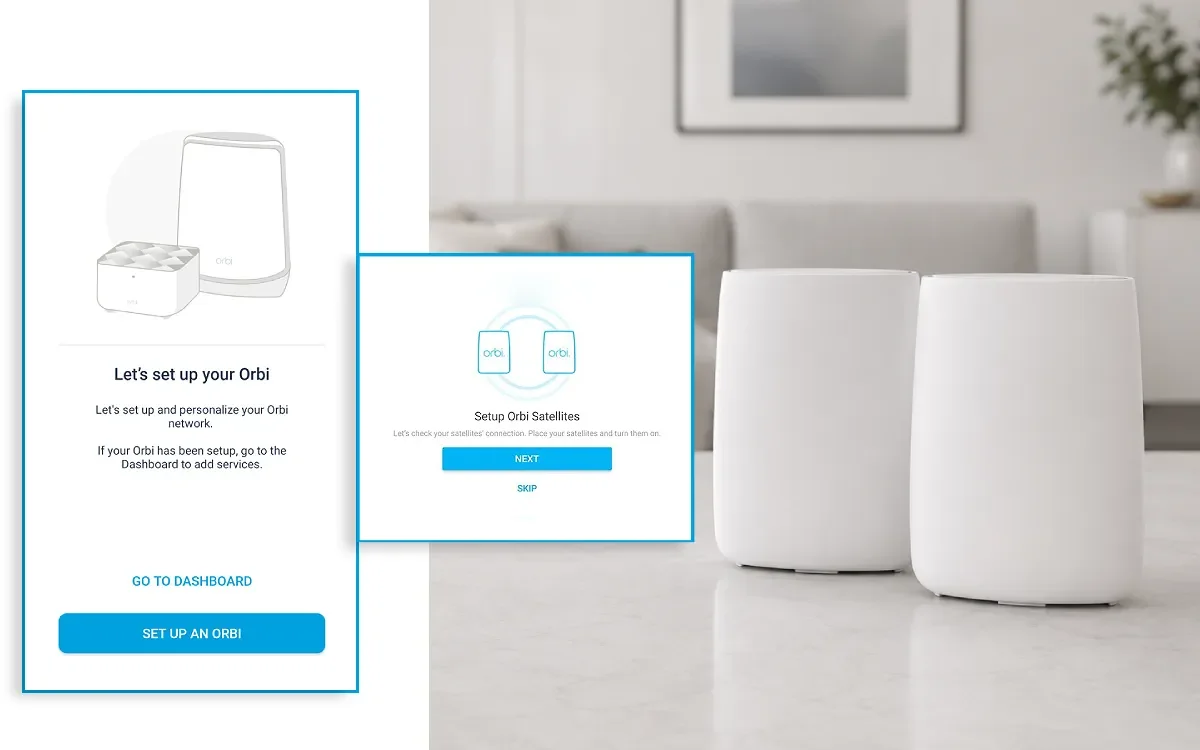
Step-by-Step Orbi RBK50 Setup Guide
Step 1: Position Your Orbi Router
Place the Orbi router near your modem during setup. After installation, move it to a central location in your home for the best WiFi coverage. Avoid placing it near thick walls, metal objects or electronic devices that may interfere with the signal.
Step 2: Connect the Router to Your Modem
Turn off your modem and remove the router you have installed previously. Use the supplied Ethernet cable to connect the yellow Internet port on the back of the Orbi router to your modem. Turn on your modem first, wait for one minute and then turn on your Orbi router. Wait until the router’s LED ring indicates that the startup process is complete before continuing.
Step 3: Download the Orbi App
The easiest way to configure your Netgear Orbi RBK50 router is through the Orbi app, available for both Android and iOS devices. After downloading the app, create a free Netgear account (or sign in if you have an existing account) and let the app detect your device.
Step 4: Follow the In-App Setup Wizard
Launch the app and select “Setup New Orbi Network.” The app will walk you through connecting your mobile device to the default Orbi network, identifying your Internet service type and setting up basic configurations. Follow the on-screen instructions to complete the Orbi RBK50 setup successfully.
Step 5: Create Your WiFi Name and Password
During the configuration process, you will be prompted to enter a customized name for your network (SSID) as well as its password. Choose a unique WiFi name and create a strong password to help secure your wireless network.
Step 6: Add and Sync the Satellite Unit
After the router setup is complete, place the satellite about 15–20 feet away from the router and power it on. The Orbi app will automatically detect and sync the satellite with your network. Make sure that the ring light of the satellite is steady blue before moving on. After synchronization is complete, move the satellite to a location midway between the router and the area with weak WiFi coverage.
Step 7: Update Firmware
After completing the installation, check for any available Orbi router firmware update to improve security, performance, and stability. It is important to keep the firmware on your orbi router up-to-date for the best possible performance and security as well as access to any new features. You should receive a notification from the Orbi app.
Step 8: Test Your Connection
Once setup is complete, walk around your home with a connected device to verify that you have a strong WiFi signal in every room. It also has a built-in speed tester and device management tool.
Common Issues During Netgear Orbi router setup and How to Fix Them
If the router doesn’t power on, verify that the power adapter is securely connected and the LED ring is illuminated. If the Orbi app cannot detect your satellite, move it closer to the router until the synchronization process is complete. If you experience connection issues during the Netgear Orbi RBK50 setup, restart both your modem and Orbi devices before trying again. If the problem persists, repeat the Netgear Orbi router setup process to ensure all devices are configured correctly.
Final Thoughts
Frequently Asked Questions
What should I do if the Orbi app cannot find my RBK50?
In case you have problems connecting the app to your router, ensure that your device is connected to the Orbi’s default Wi-Fi network. Unplug and plug in the router after 30 seconds. Make sure that the Bluetooth on your phone is switched on as well.