Netgear Orbi firmware is the software that controls your Orbi router’s functionality and features. An Orbi Router Firmware Update can help maintain router stability, improve security, and address supported software issues. Firmware updates may include bug fixes, security improvements, and compatibility updates for supported features.
If you don’t update the firmware of your Orbi device regularly, your Wi-Fi network may sooner or later come across bugs, functionality issues, and compatibility issues. Regularly checking for available firmware updates helps you keep your Orbi router running with the latest supported improvements. However, it cannot guarantee uninterrupted Wi-Fi service. In this post, we will discuss how to perform Netgear Orbi router firmware update and different ways to update Orbi firmware.
Automatic firmware update for Orbi router
You can check for available Orbi firmware updates through the Orbi app or your router’s web-based administration page, depending on your model and available features. If you don’t have the Orbi app, go to the Play Store or App Store to download and install the app. Once installed, you can follow these steps to update Orbi firmware:
- Connect your smartphone to the Orbi router’s Wi-Fi network.
- Log in to your Orbi account on the app using your Netgear account credentials.
- Open your Orbi router’s settings in the app and look for the firmware update or router update option. The menu name may vary by model and app version.
- Open the firmware update section and check whether a new version is available. If an update is offered, follow the on-screen instructions to install it.
- After this, the Orbi Wi-Fi router will reboot.
- Allow the Orbi router to restart and complete the firmware installation. Do not unplug the router while the update is in progress.
- After the router restarts, check the firmware version in the Orbi app or router settings to confirm that the update was completed successfully. You can also test your internet connection.
Manual Orbi router firmware update process
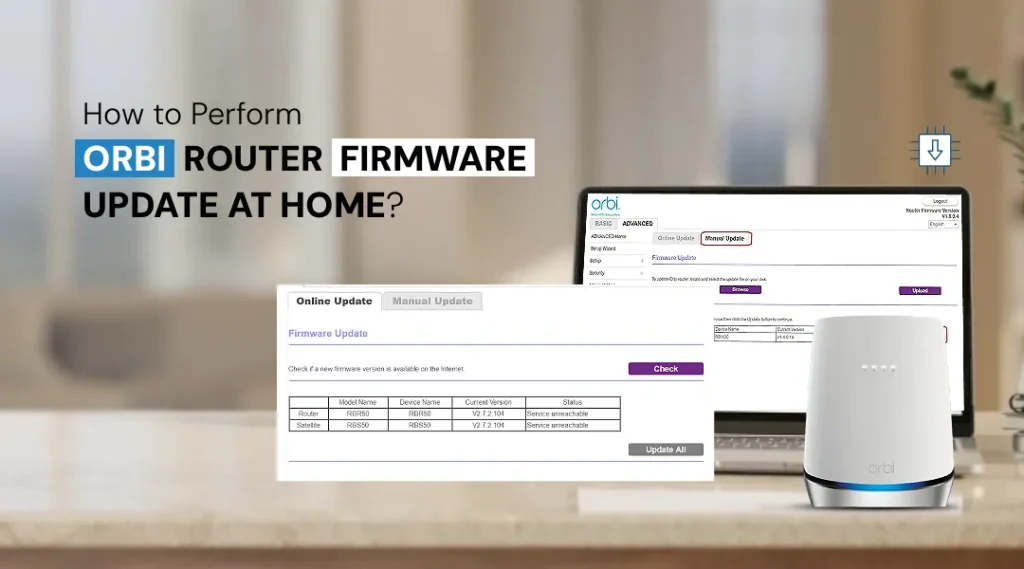
To update Orbi firmware manually, download the correct firmware file for your router model from the official Netgear Support website. Then open the router’s administration page and follow the model-specific firmware update instructions. After opening the router’s administration page, sign in and look for the firmware update section. The available options may vary depending on your Orbi model. Here are some manual steps you can follow to complete the Orbi firmware update process:
- Visit the Orbi support website.
- Enter your Orbi router’s model number to check for the latest available firmware version.
- Click Download to save the latest firmware file to your device.
- Open the Orbi router’s administration page using the address supported by your model, such as orbilogin.net or orbilogin.com, if applicable.
- Sign in to the Orbi router’s administration page and open the firmware update section. If manual file uploads are supported, select the correct firmware file you downloaded from the official Netgear Support website.
- Follow the on-screen instructions to upload the firmware file and begin the update process.
- Wait for a few minutes while your device updates the firmware.
- Wait for the router to restart and complete the firmware installation. Do not unplug the router during the update.
- Once the router restarts, the manual Orbi firmware update is complete.
Can’t update Orbi firmware? Here’s why!
If you can’t update Orbi firmware, several issues may be responsible. Common causes include an incorrect firmware file, outdated app, weak connection, corrupted download, or network interruption. Here are some reasons why you might not be able to update the firmware on your Orbi router:
- Wrong default web address.
- The Orbi app not running on the latest version.
- Low wireless network strength.
- The firmware that you downloaded was not the latest one.
- Orbi router firmware update wasn’t downloaded from an official or trusted source.
- The firmware file got corrupted after downloading.
- Orbi router powered off while updating the firmware.
- Orbi router experiencing network drop-offs.
Troubleshoot Orbi Firmware Update Issues
Here are the troubleshooting steps to fix the issue. Make sure you follow the instructions clearly to avoid facing any issues in the future:
- Restart your Orbi router if the update has not started or has failed. If the router is currently installing firmware, do not unplug it or interrupt the update.
- If you’re using the Orbi app to update Orbi firmware, make sure the app is running on the latest version.
- Please ensure that your router is not experiencing frequent network drop-offs.
- Download the firmware file only from the official Netgear Support website. Make sure the file matches your exact Orbi router model before uploading it.
- After the update finishes, allow the router to restart completely before checking the connection.
- If the update continues to fail, consider a factory reset only as a last resort because it erases customized router settings and may require you to complete the Orbi router setup again.
The Final Word
Completing an Orbi Router Firmware Update can help keep your router secure, stable, and compatible with supported features. Follow the correct update instructions for your model and allow the router to restart before using your network. This guide explained how to update Orbi firmware through the app or router administration page and troubleshoot common update issues. We hope this post helped you learn how to update Orbi firmware in two ways i.e. through the Orbi app and web address. In case you encounter more issues on your device or you just require further assistance, you can get in touch with the support team.