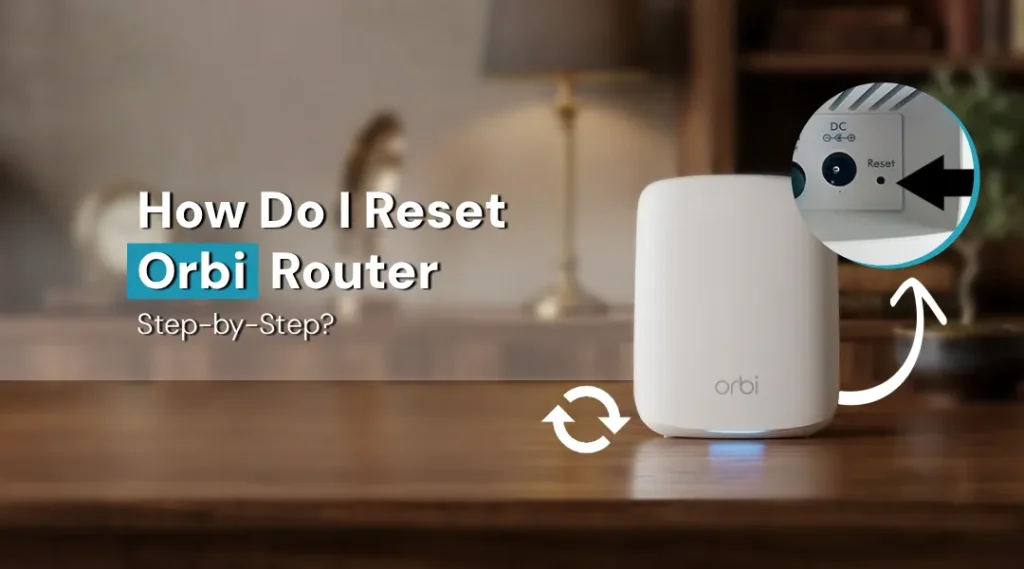
To reset an Orbi router, press and hold the reset button on the back of the router for 10–15 seconds using a pin until the LED blinks amber. The router will reboot and restore factory settings.
Orbi routers are among the best devices you can find for yourself on the market today. If you have internet dependencies, these are the best and most reliable devices you can buy. However, sometimes, these devices can also fall prey to technical issues. While you may try a series of steps to troubleshoot these issues, you will need to reset orbi router in some cases. This is where learning how to complete the factory reset Orbi router process becomes important. This blog will walk you through the complete steps to go through the process in no time.
Reset vs. Restart: What’s the Difference?
Before you begin, it’s important to understand the distinction between two commonly confused actions:
Restart (Reboot)
Simply powers the router off and back on. Your settings, Wi-Fi passwords, and configurations remain intact. This is always the first troubleshooting step.
Reset (Factory Reset)
Wipes the router completely and restores it to factory default settings. All custom configurations, including your Wi-Fi network name (SSID), password, and any port forwarding rules are permanently erased.
When should you reset instead of restart?
- You’ve forgotten the Orbi admin login credentials
- The router is stuck in a boot loop
- You’re troubleshooting deep configuration issues
- You’re selling or gifting the device
- Your Orbi router firmware update caused unexpected behavior
- A new Orbi router setup is needed from scratch
How to reset Orbi Router?
There are several methods to complete the hard reset orbi router operation. Below is some information on the same:
Factory Reset Orbi Router Using the Reset Button (Hard Reset)
The most reliable way to perform a hard reset Orbi is by using the physical reset button. This method works even if you can’t access the admin panel.
Things You’ll Need
- A straightened paperclip or pin
- Access to the back/bottom panel of your Orbi router
Step-by-Step Instructions
- Locate the Reset Button. Find the Orbi router reset button on the back or bottom of your Orbi router unit. It is a small, recessed pinhole button, typically labeled “Reset” or “Factory Reset.” On most Orbi models (RBR750, RBR850, RBR960), it’s located on the rear panel near the power port.
- Power On the Device. Make sure your Orbi router is powered on and fully booted. The LED ring should be a solid white or magenta. Do not attempt a reset while the device is powering up.
- Press and Hold the Reset Button. Insert a paperclip into the reset pinhole. Press and hold the Orbi reset button firmly for 10 seconds. You’ll notice the LED ring blink amber or change color, this indicates the reset process has begun.
- Wait for the Router to Reboot. Release the button. The Orbi router will automatically restart. This process takes 2–3 minutes. During this time, the LED will cycle through different colors. Wait until it displays a solid white or pulsing white light before proceeding.
- Confirm the Factory Reset. Once rebooted, your Orbi will broadcast its default Wi-Fi network name (typically printed on the label underneath the router). Connect to this default network to confirm the router reset was successful.
Factory Reset Orbi Router via the Admin Web Interface
If you still have access to the Orbi admin panel, you can trigger a factory reset through the browser, no paperclip required.
Step-by-Step Instructions
- Connect to Your Orbi Network. Connect your computer or smartphone to the Orbi Wi-Fi network.
- Open the Admin Panel. Open a browser and navigate to orbilogin.com or type 192.168.1.1 in the address bar. Enter your admin username (default: admin) and password (default: password, unless you’ve changed it).
- Go to Advanced Settings. Once logged in, go to Advanced > Administration > Backup Settings or navigate to Advanced > Reset.
- Select “Erase”. Click the “Erase” button to initiate the factory reset Orbi Router. A confirmation prompt will appear, confirm your selection.
- Wait for Reboot. The router will erase all settings and reboot automatically. Wait 2–3 minutes for the process to complete. The LED ring cycling indicates it’s working.
Resetting Orbi Router via the Orbi App
For users who prefer mobile management, resetting your Orbi router through the Netgear Orbi app is another convenient option.
- Open the Netgear Orbi app on your iOS or Android device.
- Tap the Menu icon (☰) and go to Settings.
- Select Router Settings > Erase / Reset Router.
- Confirm the reset when prompted.
- Wait for the router to reboot completely before reconnecting.
What Happens After You Reset Your Orbi Router?
Once the Orbi router factory reset is complete:
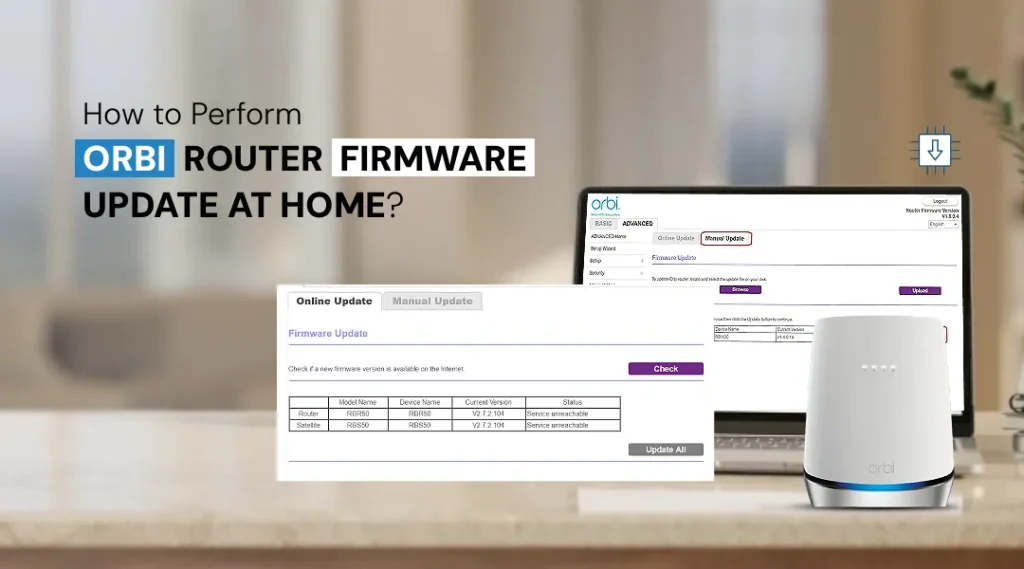
- Your Orbi router will revert to firmware from the time of manufacture — update firmware immediately after setup via Advanced > Administration > Firmware Update at orbilogin.com
- Guest network settings, parental controls, and VPN configurations are all erased
- Static IP assignments and DHCP reservations are removed — any devices that relied on fixed local IPs will need to be reconfigured
Pro Tip: Before performing a factory reset, log into the admin panel and export your configuration backup under Advanced > Administration > Backup Settings. This allows you to restore your settings after the reset without reconfiguring everything manually.
FAQs
Yes. A factory reset wipes all custom settings permanently, including your Wi-Fi network name (SSID), password, port forwarding rules, parental controls, and admin login credentials.
Occasional resets are completely safe and won’t damage the hardware. However, frequent factory resets aren’t recommended as a routine troubleshooting habit, since they erase all your settings each time and require a full Orbi setup afterward.
No. You do not need an active internet connection to reset your Orbi router. The hard reset Orbi router process using the physical reset button works entirely offline, it only requires the router to be powered on.
The Final Word
Resetting your Orbi router is a straightforward process once you know the right method for your situation. Whether you use the physical Orbi reset button for a quick hard reset Orbi router, the admin web panel, or the mobile app, the steps are simple and take just a few minutes. Always try a reboot first, back up your configuration when possible, and follow up every factory reset with a fresh Orbi setup and an Orbi router firmware update to ensure your mesh network is running at its best.
Following this guide, you can confidently reset your Orbi router using whichever method suits your situation — without losing data unexpectedly. Always back up your configuration before resetting and update firmware immediately after completing the new setup.